
1. Install from the Marketplace
Open Boardmate for Azure DevOps on the Visual Studio Marketplace, install it and choose your organization. Installing requires the Project Collection Administrator or organization Owner role; other users can request the extension and an administrator approves it.
Boardmate supports Azure DevOps Services (dev.azure.com). Azure DevOps Server is not supported. Your 30-day trial, with everything included, starts the first time someone in the organization uses Boardmate.
2. Connect your AI provider
Boardmate uses your organization's own AI service. Only Project Collection Administrators can view or change it. Open Organization settings → Boardmate → AI provider.
Step 1: Connect
- Choose the provider: OpenAI, Azure OpenAI, Anthropic, OpenRouter or OpenAI-compatible (for example LiteLLM).
- Check the base URL. OpenAI, Anthropic and OpenRouter have a fixed address; for Azure OpenAI and OpenAI-compatible services you enter it.
- Enter the API key and select Connect. Boardmate checks the key against the service. After a successful connect the panel shows Connected · key saved. The key is stored encrypted (AES-256-GCM) and never shown again, not even in part.
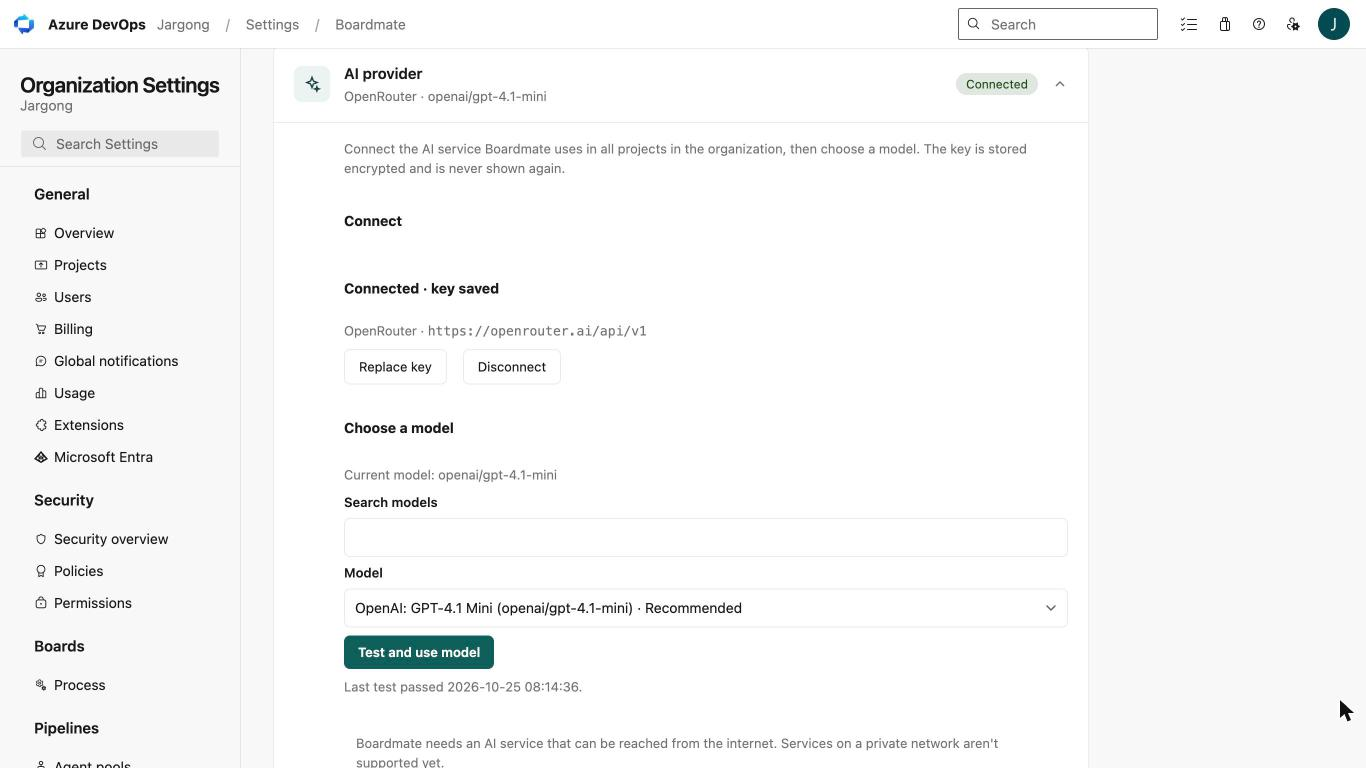
Step 2: Choose a model
Pick a model from the list (the recommended one is first) or type any model ID with Other model…. Select Test and use model: Boardmate makes a short test call with chat and tools and saves the model only if the test passes. Changes can take up to a minute to apply.
| Provider | Notes |
|---|---|
| OpenAI | Chat models are listed. Recommended: gpt-4.1-mini. |
| Azure OpenAI | The v1 API only. Address https://<resource>.openai.azure.com/openai/v1; the model is your deployment name. |
| Anthropic | Through Anthropic's OpenAI compatibility layer. Type a model ID, for example claude-haiku-4-5. |
| OpenRouter | Only models that support tools are listed. Recommended: openai/gpt-4.1-mini. |
| OpenAI-compatible | Any service with the OpenAI chat completions API, streaming and tool calls, such as LiteLLM. Enter its …/v1 address. |
The AI service must be reachable from the internet over HTTPS (port 443, or 1024–65535). Services on a private network, or addresses that resolve to private IP addresses, are not supported yet.
3. Choose projects and sources
On the same Organization settings page, Which projects decides where Boardmate is on: Projects decide, All projects or Selected projects. The status card at the top shows whether the backend and your AI service respond.
Each project has one settings page (Project settings → Boardmate) with Activation and panels for Insights, Break down work item, Boardmate sources, Prompt templates and Fields and roles:
- Boardmate sources: the project wiki and Microsoft's Azure DevOps documentation are on by default. Markdown files in repos, and code and pull requests, are off until you pick the repos.
- Fields and roles: map which field is the description, acceptance criteria, repro steps, priority and size for each work item type, including custom processes and types.
- Break down work item: choose which child types to generate per parent type, how many suggestions per run and whether children inherit area and sprint.
Optionally write a Project context in the Boards hub: conventions, domain terms and background that Boardmate shares with every answer in the project.
4. Your first chat and field suggestions
Chat in the Boards hub
Open Boards → Boardmate and ask in plain words, for example:
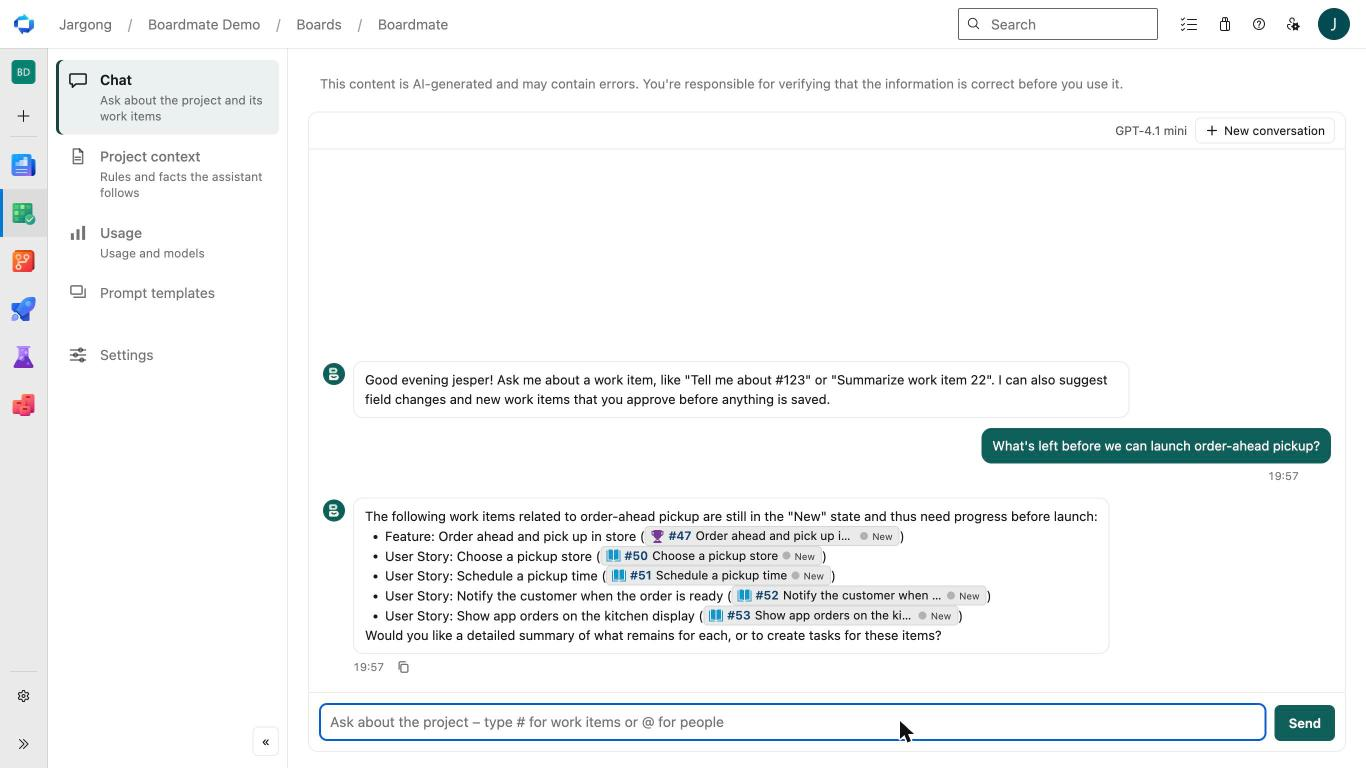
- "Summarize #123" or "Which work items are related to #45?"
- "What's left in the sprint?" or "Which bugs are assigned to me?"
- "What has happened to my work items in the last week?"
- "How do I set up a branch policy?" (answered from the documentation, with source links)
Type # to reference a work item and @ to mention a person. When the assistant suggests a
change, such as new tasks, a field update or a move to another sprint, it appears as a card with
Approve and Cancel. Larger changes become a plan that you
review step by step and run with Run plan. Nothing changes until you approve.
Field suggestions on the work item form
Open a work item. The Boardmate panel lists templates for that type, such as Write description, Write acceptance criteria or Write repro steps. Click one, review the suggestion (labeled as AI) and choose Apply to field. Then save the work item to keep the change.
Break down and Insights
The Break down work item tab generates children, such as tasks under a story or test cases for a requirement: choose the type, select Generate, tick the ones you want and select Create. Insights (in the panel's More options menu) shows spec health, decisions and open questions, and a chat that starts from the work item.
5. Trial and license
The trial includes everything for 30 days. Administrators see the days left under Organization settings → Boardmate → Plan & billing, where Upgrade buys a license. After the trial the AI features need a license; Insights rule checks, field mapping and usage statistics stay free. See Pricing.
Stuck? Email support@hardyson.se or see Support.